

We’ll send you an email or SMS to confirm. Don’t worry about setting up before then.

We recommend finding a central location that’s well-ventilated and away from other electronics.

Identify your internet connection type and find your modem guide – then you’re ready to work, stream or game.

Manage your internet service from the palm of your hand. Find a bill, update your details, change your plan and more.
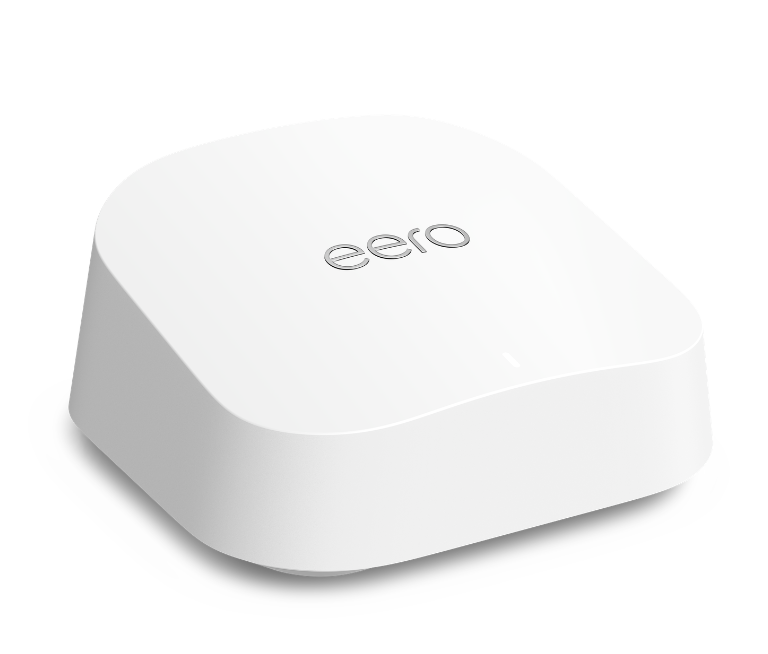
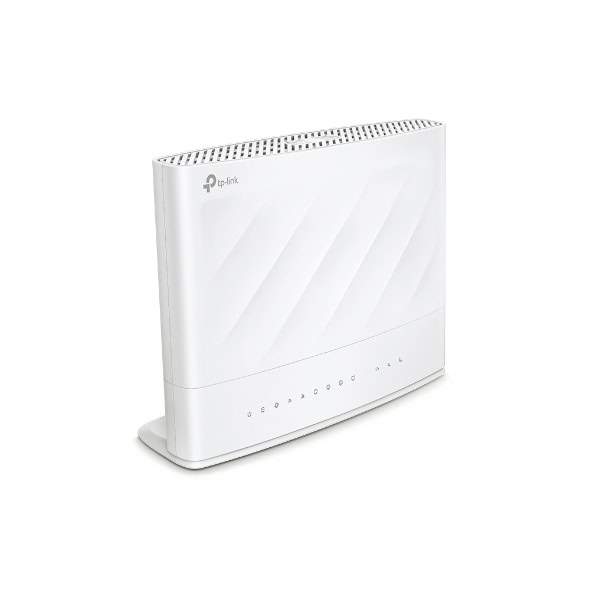
A wi-fi 7 router designed to support fast and reliable network performance
Connect via wi-fi
Underneath your modem, you’ll find your wi-fi information. When connecting your devices to wi-fi scan for the wi-fi Network Name (SSID) on the back of your modem. Enter the wi-fi password exactly as printed on your modem.
Connect via Ethernet cable
Connect the devices (such as your desktop computer) by plugging in the Ethernet cable to any of the corresponding LAN ports on the back of your modem and then connect the other end into the Ethernet port on your device.
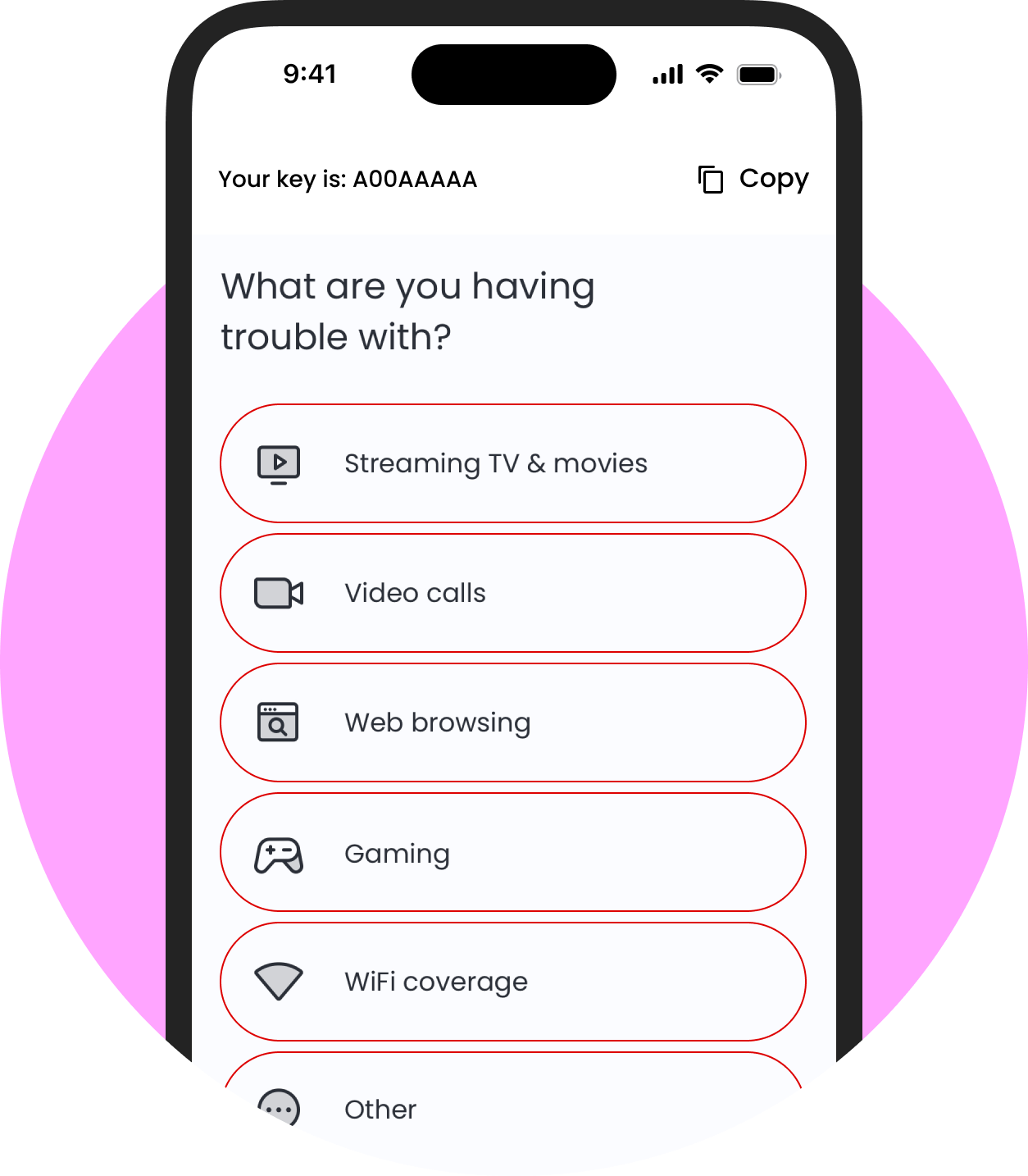
Download the Origin Internet Helper app onto your smart phone. The app can help you diagnose common issues like:


Try the following:
There could be a few reasons why:
Yes, you can transfer your home phone number. It can take up to 10 days after your nbn service is active for this process to complete. We’ll send you an email to confirm when your phone service is active with us.
We understand that you might want to use their own modems with their Origin internet service. That’s fine with us, but you need to make sure your modem will be compatible. Generally speaking, a modem has to be compatible with the technology type you’re getting. For example, if you’re changing your service from ADSL to nbn, there’s a good chance you’ll need a new modem. But if you’re just changing nbn plans at the same address, you shouldn’t need one.
The best way to ensure your service will work, is by purchasing a modem through us when you sign up to one of our internet plans. That way you know you’ll be supported by us, if and when you need help with your Origin internet service.
There are certain instances where you can’t use your own modem. Learn more our on our page BYO modem set up guide
• Upgrading from ADSL to nbn (if your modem is not nbn compatible), HFC, FTTP, FTTC, Fixed Wireless, or Satellite NBN.
• Your modem is locked to another internet service provider. You’ll need to follow up with the provider how to unlock certain features of the modem.
Good to know:
• FTTP, HFC, FTTC connection types have NTD boxes that double up as modems, so these connections will require an additional router to set up wi-fi inside the house.
• FTTN and FTTB connection types need both a modem and a router. These should be VDSL2 compatible.
Got another internet service provider’s modem?
There might be additional adjustments you’ll need to make before you can get connected. If your modem is locked to another service provider’s modem, please get in touch with them to unlock your modem. We might also be able to help you troubleshoot.