Welcome to EnergyZone
Origin Zero EnergyZone lets you take control of your business’s energy with personalised insights and advice to help you optimise your usage, track your emissions, and reach your decarbonisation targets.
What’s inside?
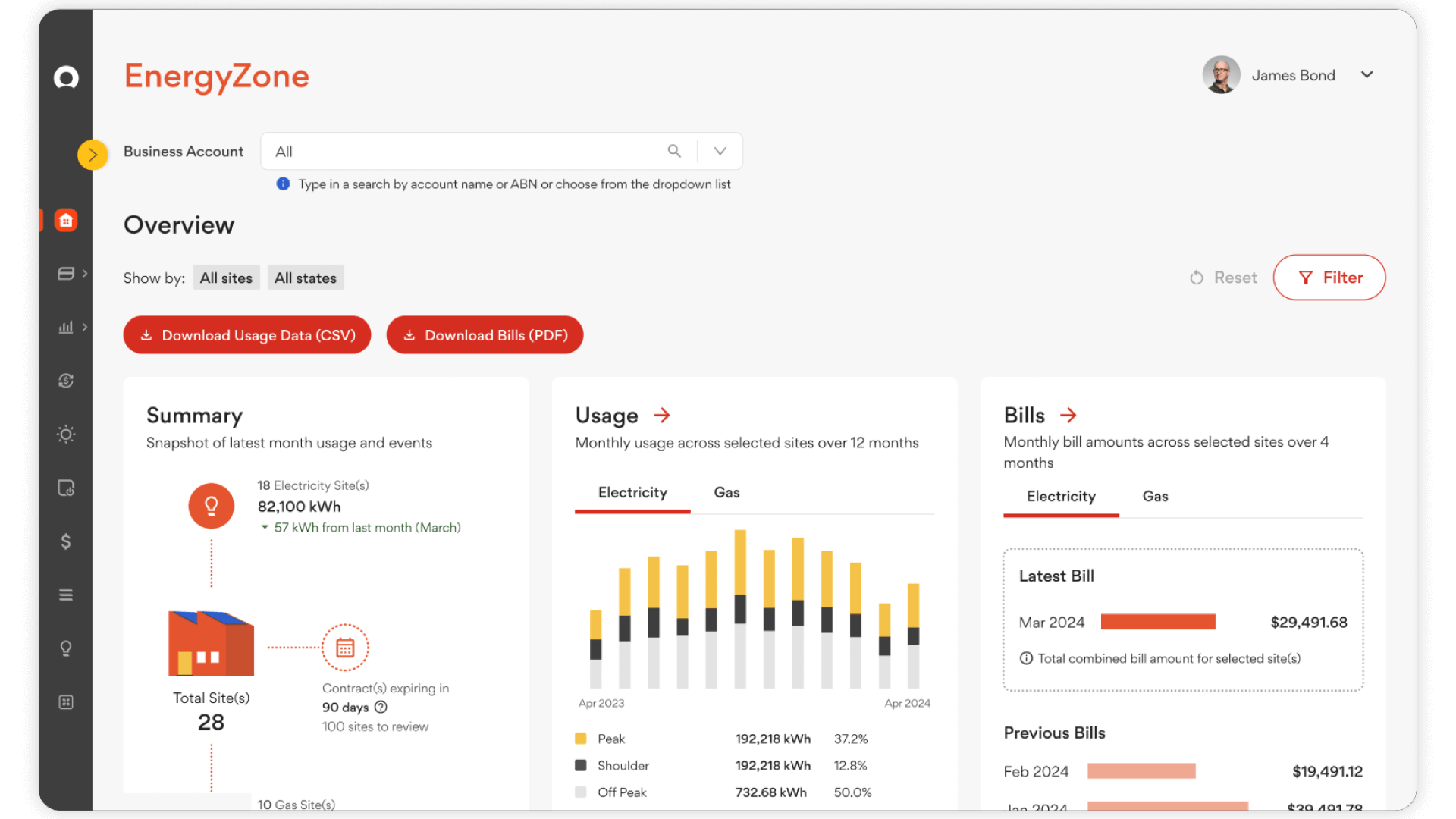
Your account at a glance
Discover the upgraded EnergyZone dashboard—view your account summary, track monthly consumption, check your latest bill, and download bills and usage data instantly upon login.
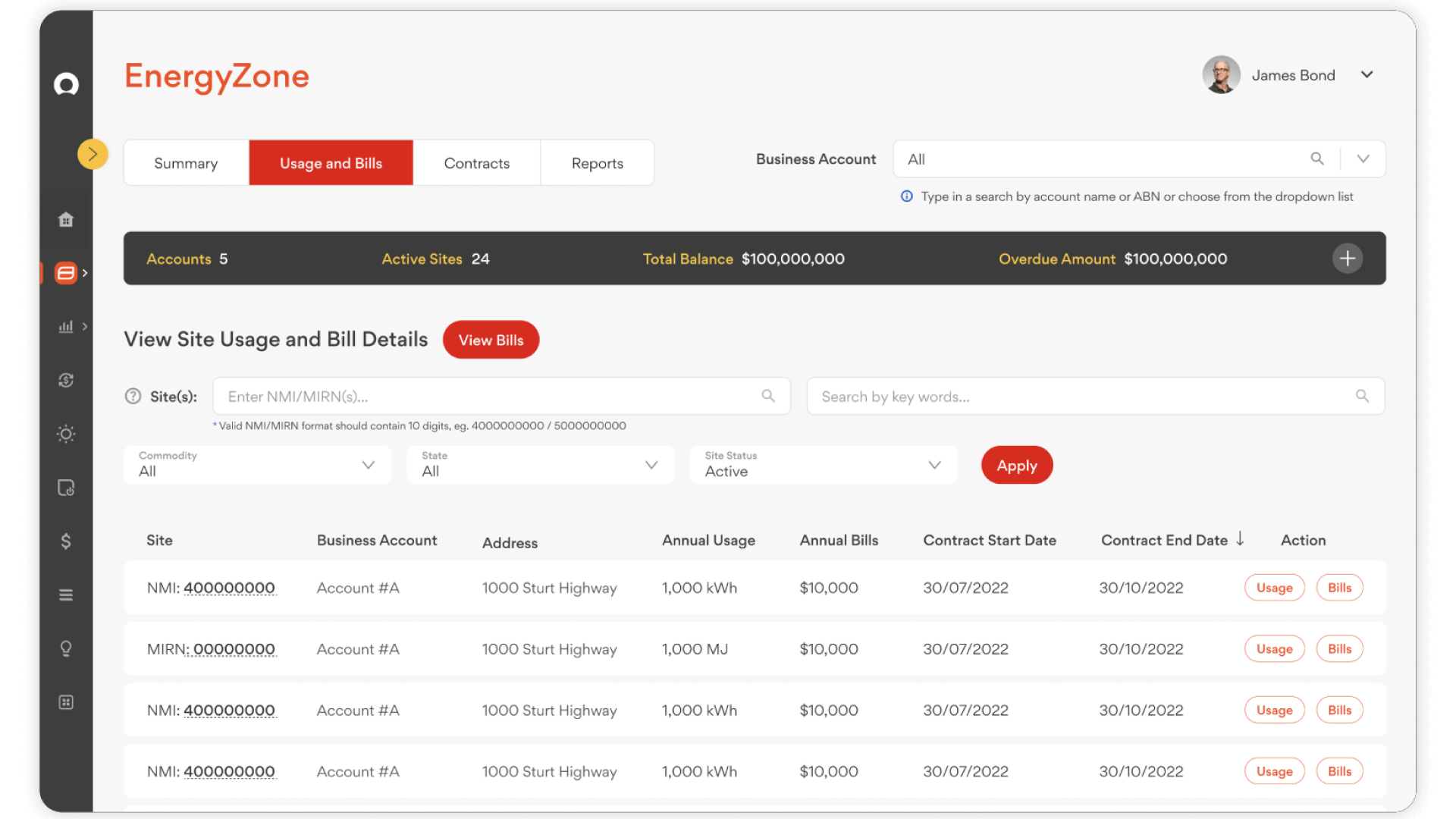
Download your bills and usage
View all your bills in one place and monitor your energy consumption with ease. Quickly spot unexpected usage and take control by turning off what you don’t need.
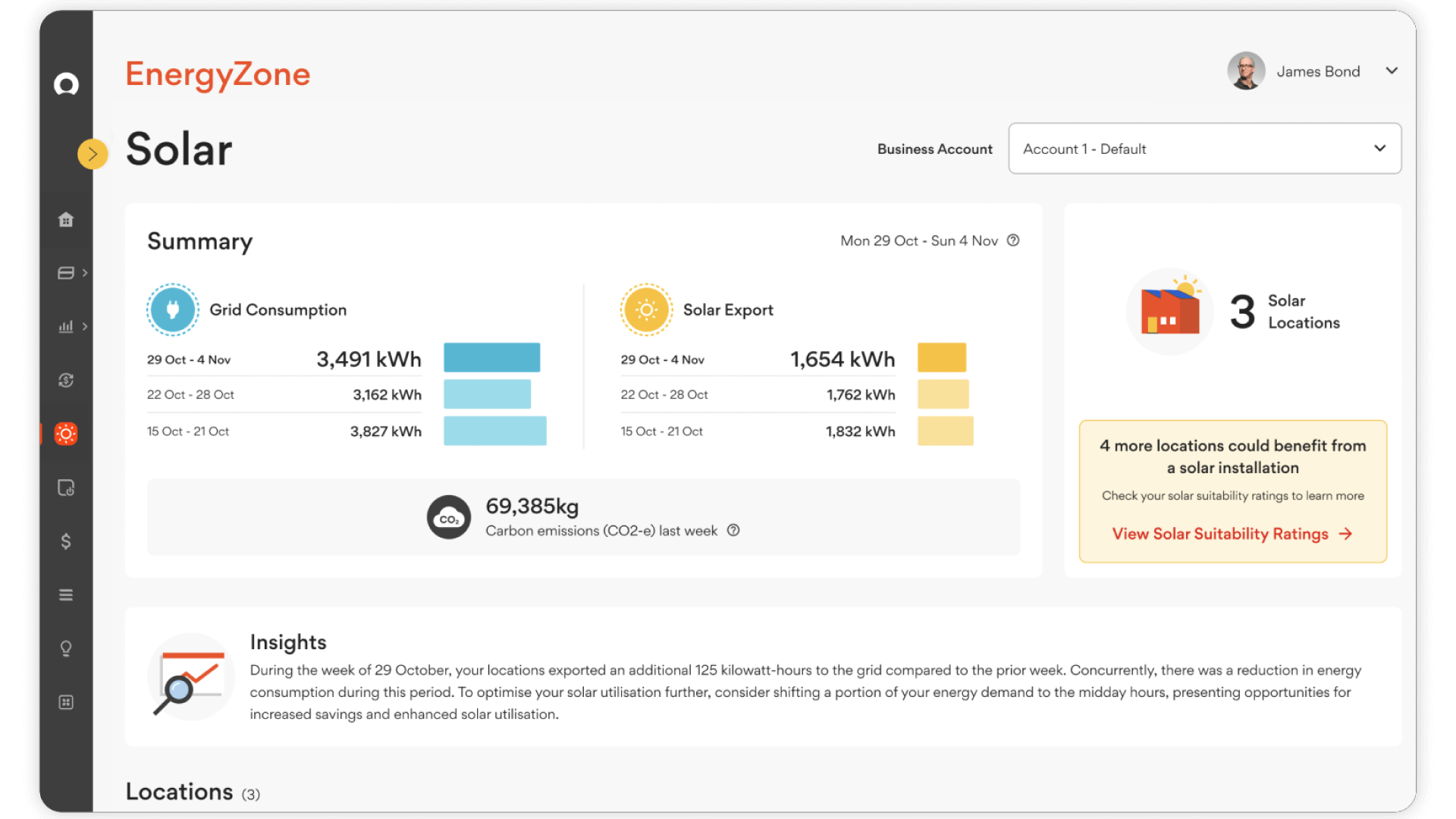
Check your solar suitability
See if your site is suitable for solar by reviewing your solar suitability score.
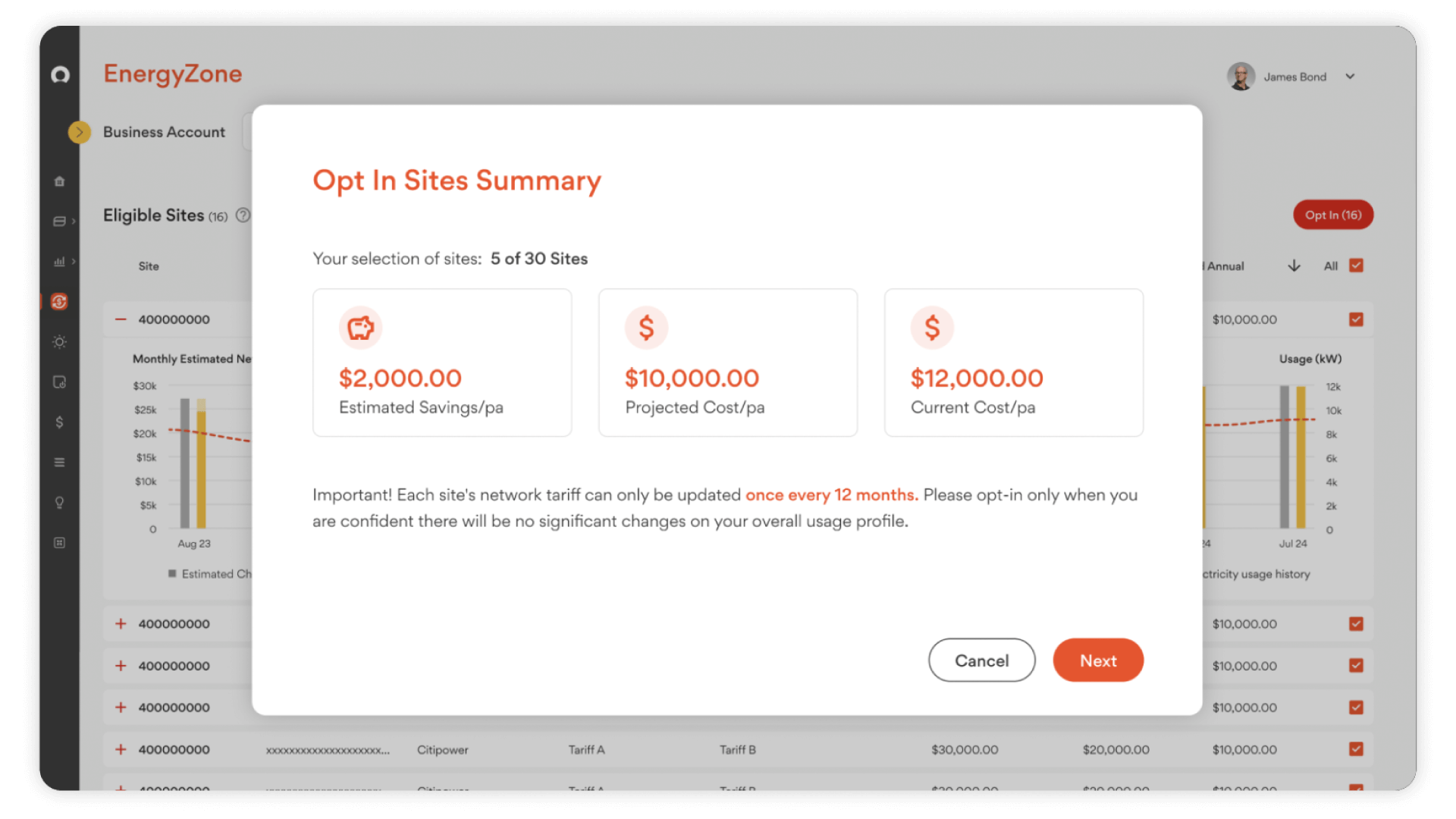
Unlock network tariff savings
Identify opportunities where you can switch to a better tariff and save. You can submit one network tariff change request per NMI every 12 months.
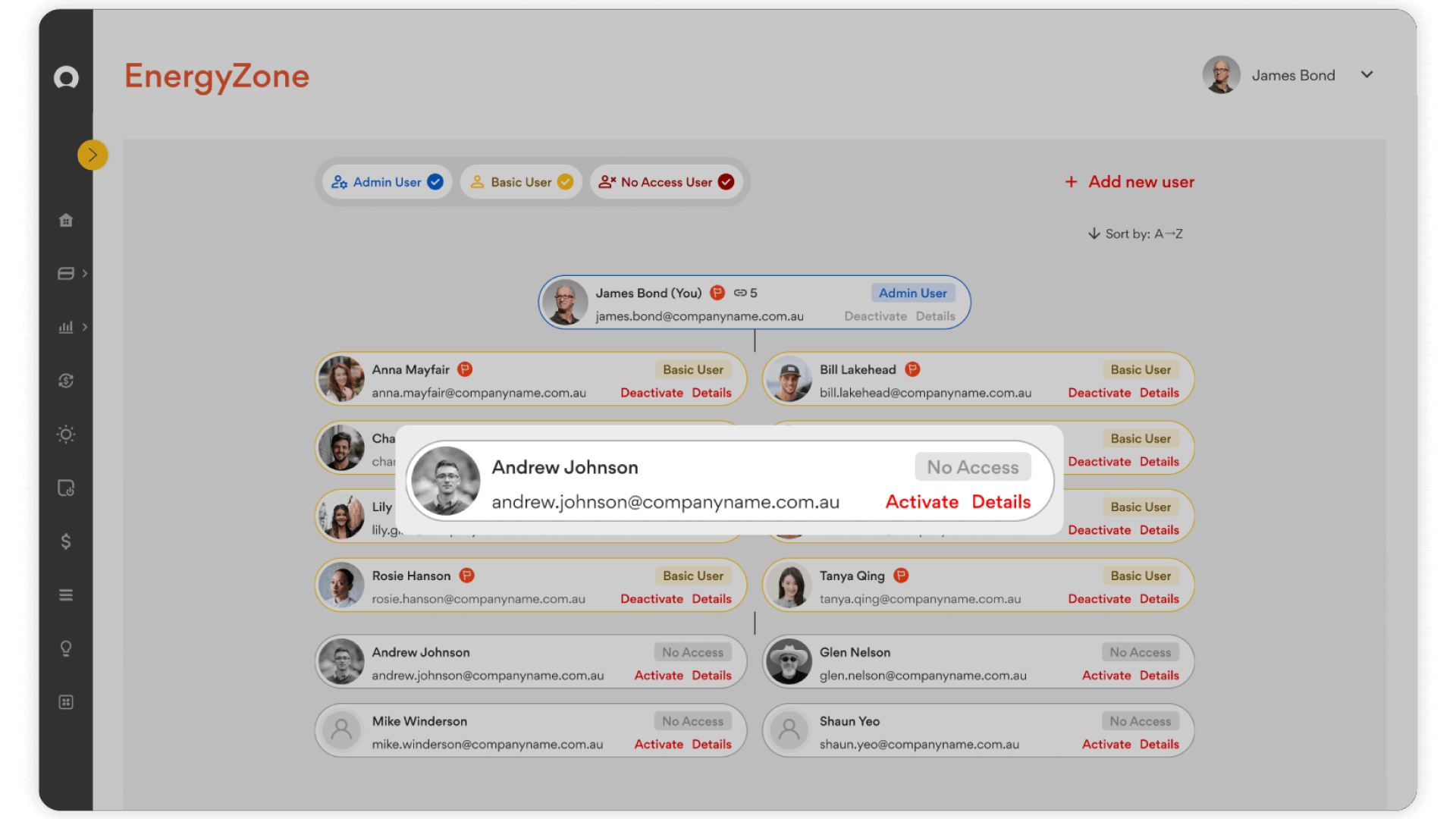
Give your team access
Give up to 10 members of your team access, allowing them to view the reports they need.
Explore your EnergyZone portal today
Take control of your business’s energy with personalised insights and advice to help you optimise your usage, track your emissions and more.
Quick guides
Browse our ‘how to’ videos to guide you through the EnergyZone portal, covering everything from logging in to assessing solar suitability.
How to log in to EnergyZone
- Click log in on the top right corner of this page. Or go to portal.originzero.com.au.
- Enter your username and password and start exploring.
- If you forgot your password or it’s your first time logging in: Click on “Forgot or create my password”.
- You’ll receive an email with prompts to change your password. Log in using your new details to start using EnergyZone.
How to view your account balance
- Log in.
- Click Summary in the ‘Usage and Bills’ section on the left menu.
- Here, you’ll see an overview of your active sites, total balance by commodity and any overdue amount you may have.
- In this dashboard, you can also view a summary of your usage and bill amounts over the last 12 months.
- If you’re a channel partner managing multiple customers, search for your preferred account using the account selector and your data will display accordingly.
How to view and download meter data
- Log in.
- Click the ‘usage’ option on your dashboard or Click ‘Reports’ on the left menu.
- To export data, click on ‘Export’.
- Search for a specific site by the NMI, MIRN, or a keyword (e.g. site address), and input the fields for ‘Commodity’, ‘Start Date’, and ‘End Date’.
- Export in either CSV or NEM12 format.
- A link to download the meter data file will be sent to your registered email. Click the link in the email to download the data file.
How to view and download bills
- Log in.
- Click the ‘bills’ option on your dashboard or Click ‘Usage and Bills’ on the left menu.
- If you have multiple accounts, you can either choose the account you want to view the bill for, use the Search function, or apply filters to narrow your search results.
- You can download one bill at a time or use the bulk download option to download a selection.
How to view your contract end date
- Log in.
- Scroll down and click Contracts on your dashboard. Here, you’ll see a list of your sites with the contract type, start date, end date and status.
- If you’re a channel partner managing multiple customers, find for your preferred account using the account selector and your data will display accordingly.
How to manage user access
- Log in.
- Click on your name on the top right corner of the screen. Then select “User”. You’ll see a list of current users with access to your account, as well as available users you can add.
- To remove a user, click “Deactivate” next to their name.
- To add a new user from the available, click “Activate” next to their name.
- To add users outside this list, click ‘add new user’. Fill out the user’s details to complete the setup.
How to monitor your solar performance
- Log in.
- Click the solar option on your dashboard or Click ‘Solar’ on the left menu. (If you have multiple accounts, click the ‘business account’ drop down menu, to switch between accounts).
- You’ll see a summary of your grid consumption, estimated carbon emissions, and solar exports across all solar-equipped sites.
- Scroll down for a high-level analysis of your solar performance.
- To dive deeper, select a specific site and click ‘View’ for location-specific insights and detailed data by time period.
- You can click Download if needed.
How to renew your electricity contract online
- Log in to EnergyZone with your email and password, then enter the one-time code sent to your inbox.
- Find your contract: Click ‘Quote and Contract’ in the left menu, then click ‘Open’ on your contract.
- Start a quote: Choose ‘Quick Renew’ to keep your current terms at the latest rates, or ‘Get a Quote’ to build a new agreement from scratch.
- Configure pricing: Choose stepped or smoothed pricing, set your contract end date, and review rates by state. Use ‘Compare’ to see your quote against current and default rates.
- Add GreenPower (optional): Choose between 30% and 100% GreenPower.
- Review and edit: Adjust contract duration, add a Direct Metering Agreement, update your main contact, or add solar sites. Save, or share the quote with a decision-maker for sign-off.
- Accept: Click ‘Proceed to Accept’, tick the terms and conditions, and click ‘Accept’. No written signature needed — your confirmation email and contract copy arrive within minutes.
Questions? Email businessdirectsales@originenergy.com.au
How to review and accept a shared electricity quote
When a colleague, broker, or Origin shares an electricity quote with you for sign-off, here’s how to review and accept it.
- Open the email: Check your inbox for the email sharing the quote. Click the link to open the quote acceptance page.
- Review the details: Check the contract details, energy rates, GreenPower and environmental charges.
- Edit if needed: Reduce the agreement term, update the Direct Metering Agreement, or change the main contact details.
- Enter your details: Add your full name and email address. Your email is optional, but it’s used to send you a copy of the contract. If the sender asked for main contact details, complete those too.
- Accept: Open the terms and conditions, tick the checkbox to confirm, then click ‘Accept’. The contract is digitally executed — no written signature needed.
- Done: A confirmation email and a copy of the contract are sent to you and to the person who shared the quote
Questions about Quote and Contract? Email businessdirectsales@originenergy.com.au
How to view energy insights
- Log in.
- Click ‘EnergyZone Insights’ on the dashboard.
- If you’re already registered, you’ll find all your monthly reports listed. Just download the one you need.
- If you haven’t registered yet, click on the option to register. Follow the prompts and our team will reach out to finalise your registration.
- You can also download a sample report to see what to expect.